

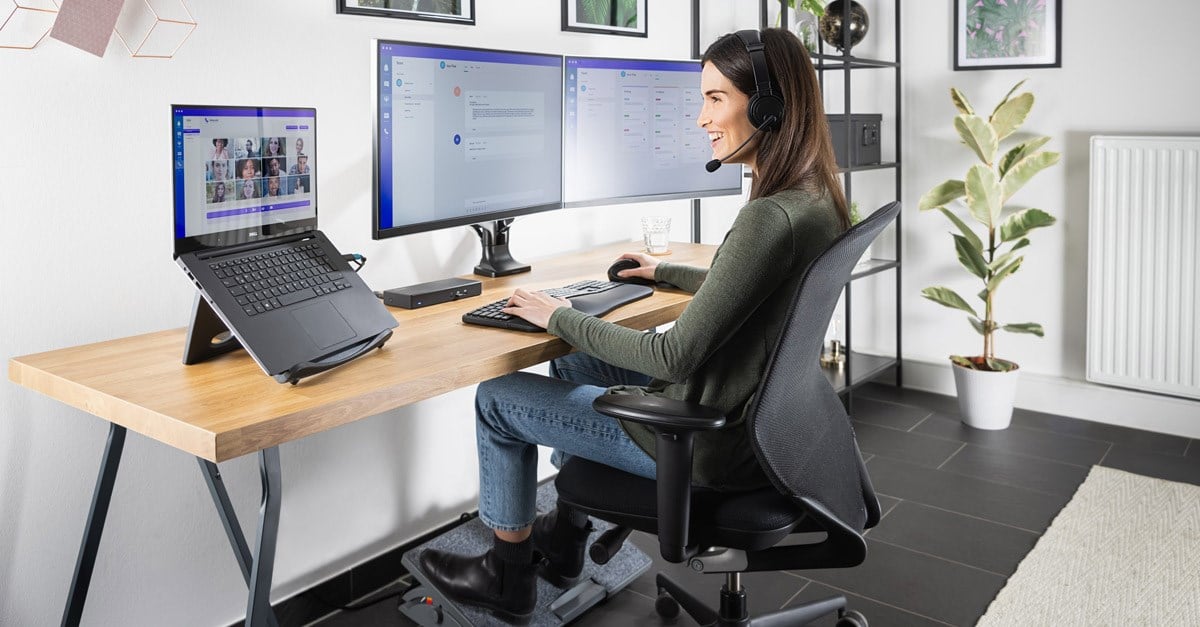
Working from home offers unprecedented flexibility, but it also presents a subtle trap. Without a designated, thoughtfully arranged workspace, remote work can quickly lead to chronic physical discomfort, mental fatigue, and declining output. Slouching over a kitchen counter or tapping away on a laptop while sitting on a couch might work for an hour, but over months and years, poor posture takes a heavy toll on muscle health and focus.
Building a workspace that balances ergonomics with productivity is an investment in both your physical health and professional output. By aligning human biomechanics with smart spatial organization, you can eliminate physical strain, sharpen your mental clarity, and establish clear boundaries between your working life and personal downtime.
The Foundations of Ergonomics: Protecting Your Body
Ergonomics is the science of designing a workspace to fit the user’s physical needs, minimizing strain and maximizing efficiency. The primary goal is to maintain a neutral spine alignment, where your joints line up naturally to reduce pressure on muscles, tendons, and skeletal structures.
When your body rests in a neutral posture, energy expenditure decreases, circulation improves, and the physical fatigue that usually sets in by mid-afternoon vanishes. Achieving this state requires paying close attention to how your chair, desk, and hardware interact with your anatomy.
Selecting and Adjusting the Right Office Chair
Your chair is the foundation of your ergonomic setup. A proper ergonomic chair supports the natural curve of your spine and accommodates natural adjustments throughout the day.
-
Lumbar Support: The chair must offer adjustable lower back support that fits neatly into the curve of your lower spine, preventing slumping.
-
Seat Height and Depth: Adjust the chair height so your feet rest flat on the floor with your knees bent at a ninety-degree angle. Leave a gap of two to three fingers between the front edge of the seat pan and the back of your knees to preserve healthy blood circulation.
-
Armrest Placement: Armrests should support your forearms gently so your shoulders remain relaxed and down, rather than hunched upward toward your ears. Your elbows should bend at a right angle.
Desk Height and the Benefits of Movement
A static posture, no matter how perfect, eventually causes stiffness. Modern ergonomic philosophy emphasizes dynamic movement throughout the workday.
-
Standard Desk Height: Traditional fixed desks stand around thirty inches high, which is actually too tall for many individuals. If your feet dangle when the desk height matches your elbow level, use a dedicated footrest.
-
Sit-Stand Desks: Adjustable standing desks allow you to alternate between sitting and standing throughout the day. This shift encourages spinal movement, boosts circulation, and combats metabolic sluggishness.
-
The Sitting-to-Standing Ratio: Aim to stand for roughly fifteen to twenty minutes for every hour spent sitting. Avoid standing continuously for hours, as prolonged standing places excess pressure on lower joints and feet.
Optimizing Monitor, Keyboard, and Mouse Placement
Even the best chair and desk will fail to prevent pain if your hardware forces you to lean forward, tilt your neck, or strain your wrists. Equipment positioning determines your upper body posture.
Monitor Height and Viewing Distance
Incorrect screen placement is the leading cause of neck strain and eye fatigue among remote professionals.
-
Eye-Level Alignment: Set the top edge of your monitor at or slightly below your horizontal line of sight. Looking downward at a laptop screen forces the neck to carry the equivalent weight of a heavy bowling ball, straining neck muscles.
-
Viewing Distance: Position the screen roughly an arm’s length away, or between twenty and thirty inches from your eyes.
-
Dual Monitor Layout: If you use two screens equally, center the seam where they meet directly in front of you. If one screen serves as your primary display, place it directly in front and tilt the secondary screen off to one side.
Keyboard and Mouse Mechanics
Your hands and arms should move freely across your desk without reaching or bending your wrists unnaturally.
-
Neutral Wrist Alignment: Keep your wrists flat and straight while typing, parallel to the desk surface. Avoid resting your wrists heavily on hard edges while actively typing.
-
Proper Mouse Selection: Choose an ergonomic mouse that supports the palm completely. Vertical mice keep the forearm in a neutral hand-shake position, preventing forearm pronation and wrist tension.
-
Keep Controls Close: Position your keyboard and mouse close enough that your elbows remain tucked beside your torso, avoiding extended reaches across the desk.
Lighting and Environment: Sharpening Focus and Reducing Fatigue
Ergonomics extends beyond physical furniture to encompass sensory input. Poor lighting, excessive noise, and sub-optimal air quality quietly drain your daily energy and disrupt cognitive performance.
Controlling Natural and Artificial Light
Proper lighting prevents eye strain, keeps circadian rhythms synchronized, and minimizes headaches.
-
Position Relative to Windows: Place your desk perpendicular to windows rather than facing them directly or sitting with your back to them. This setup prevents harsh glare on your monitor and avoids blinding natural light.
-
Layered Task Lighting: Use an adjustable task lamp with warm or neutral color temperatures to illuminate physical documents without casting shadows across your workspace.
-
Managing Digital Glare: Adjust screen brightness to match the ambient room lighting. Utilize matte screen protectors or anti-glare display filters if ambient light creates harsh reflections.
Acoustic Control and Thermal Comfort
Mental focus requires an environment free from constant auditory and thermal distractions.
-
Sound Dampening: Soft furnishings like area rugs, thick curtains, wall tapestries, and acoustic panels absorb sound reflections, keeping video calls clear and background noise low.
-
Temperature and Ventilation: Keep your home office temperature between sixty-eight and seventy-two degrees Fahrenheit. Fresh airflow prevents carbon dioxide buildup, keeping you alert and preventing mid-day drowsiness.
Workspace Layout and Organizational Productivity
A clean, intentional layout streamlines workflow, minimizes cognitive friction, and establishes healthy psychological boundaries between work and personal life.
Zone Organization for High Efficiency
Dividing your desk into functional zones prevents clutter from accumulating and keeps essential items within easy reach.
-
Primary Zone: The area directly in front of you should hold only immediate work essentials, including your keyboard, mouse, and current working papers.
-
Secondary Zone: Items used periodically throughout the day, such as a water glass, notebook, or phone, should rest within easy arm reach without requiring you to twist your spine.
-
Tertiary Zone: Reference books, filing trays, and decorative elements should sit farther away, requiring a deliberate shift or stand to retrieve.
Cable Management and Visual Minimalists
Visible wire clutter generates ambient psychological stress and makes cleaning difficult.
-
Under-Desk Trays: Mount power strips and heavy brick adapters underneath the desk surface using cable management trays or wire baskets.
-
Sleeves and Ties: Bundle loose cables together using fabric sleeves or reusable hook-and-loop ties to maintain clean visual lines.
-
Wireless Peripherals: Opt for reliable wireless keyboards, mice, and audio gear to reduce the physical footprint of cables across your desk surface.
Daily Routines to Maintain Ergonomic Health
Hardware alone cannot fix physical strain if you remain completely sedentary. Integrating active physical resets throughout your schedule ensures long-term comfort and productivity.
-
Practice the 20-20-20 Rule: Every twenty minutes, look away from your screen at an object twenty feet away for at least twenty seconds to relax your eye muscles.
-
Perform Desk Micro-Stretches: Take thirty-second breaks every hour to perform gentle chest openers, shoulder rolls, and neck tilts to relieve built-up muscle tension.
-
Schedule Movement Breaks: Get up completely from your desk at least once every hour to stretch, walk around, or grab a glass of water.
Frequently Asked Questions
Is a laptop stand necessary if I do not use an external monitor?
Yes. Using a laptop flat on a desk forces you to look down continuously, causing severe neck and upper back strain. Placing the laptop on an elevated stand aligns the screen with your natural line of sight. Pair the elevated laptop with a separate external keyboard and mouse so your hands remain at a comfortable, neutral height.
How do I know if my chair lumbar support is set at the correct height?
Proper lumbar support should fit naturally into the small curve of your lower back, right above your belt line. It should offer firm yet comfortable support without pushing your lower spine uncomfortably forward or leaving a hollow gap behind your lower back when you lean back.
What can I do if my home office space is too small for a full ergonomic desk?
Focus on versatile, space-saving solutions. A compact wall-mounted drop-leaf desk or a narrow standing desk converter can work well in small rooms. Prioritize proper chair height and monitor placement regardless of desk size, and consider using a footrest to adjust your seating position without needing large furniture pieces.
Are anti-fatigue mats useful for standing desks?
Anti-fatigue mats are highly beneficial for standing desk setups. Standing on hard flooring causes pressure on your feet, knees, and lower back. High-density foam mats encourage subtle muscle contractions in your calves and feet, which improves blood flow, reduces joint strain, and makes standing far more comfortable for extended periods.
How can I stop glare on my computer screen without closing all the blinds?
Position your desk perpendicular to windows rather than directly in front of or behind them. You can also install sheer window curtains or adjustable blinds that diffuse harsh sunlight while maintaining natural illumination. Alternatively, attach an anti-glare screen filter directly onto your monitor.
Should I use an armrest pad or wrist rest while typing?
Wrist rests are designed to support your palms during short pauses in typing, not while actively pressing keys. Resting your wrists heavily on a pad while typing compresses the soft tissue on the underside of your wrists, increasing pressure on the carpal tunnel. Keep your wrists floating horizontally while typing, resting your palms on the pad only between typing bursts.
How high should my footrest be if my feet do not reach the floor?
Adjust your footrest height so your thighs rest parallel to the floor with your knees bent at a ninety-degree angle. Your feet should rest flat on the footrest without feeling squeezed upward toward your chest, and there should be no firm pressure on the underside of your thighs from the edge of your chair seat.
